A step-by-step guide to running points, rewards and referrals in the Loyalty & Referrals app for BigCommerce. Every screen shown here is a screenshot of the app as it ships.
Before you start
Three things decide how everything else behaves. Read these first and the rest of the guide makes sense.
- Customers become members automatically when they create an account on your store. There is no sign-up step to configure and nothing for them to opt into.
- Points are calculated on the order subtotal after discounts. Tax and shipping are left out, so a customer cannot earn points on postage.
- Customers are matched by email address. That is how a sale at the till reaches the same balance as an order on your website, and why a walk-in with no email on the sale cannot earn.
The app works on the customers and orders already in your store. There is nothing to import.
Install and connect your till
Installing takes about a minute. Connecting the till takes about five.
- Install from the BigCommerce marketplace and approve the permissions. The app needs to read customers and orders, and to create discount codes.
- Open the app. It lands on the Overview screen with a setup checklist. Work down it.
- Find your till keys. Open Settings and go to Connect your till. Copy the Connection ID and the API key.
- Paste them into ConnectPOS. In the ConnectPOS app, open the ConnectPOS loyalty settings, paste both values and save.
- Ring up a test sale for a customer who has an account. The points should land on their record within a minute.
No ConnectPOS? Skip steps 3 to 5. Everything else works the same; points simply only come from online orders.
If the test sale awards nothing. Check that the sale has an email address on it, because matching is by email. Then check Settings for which order statuses award points: if only Completed is ticked and the till leaves sales as Processing, nothing is awarded until the status changes.
The Overview screen
Overview answers one question: is the programme running, and is anyone using it.
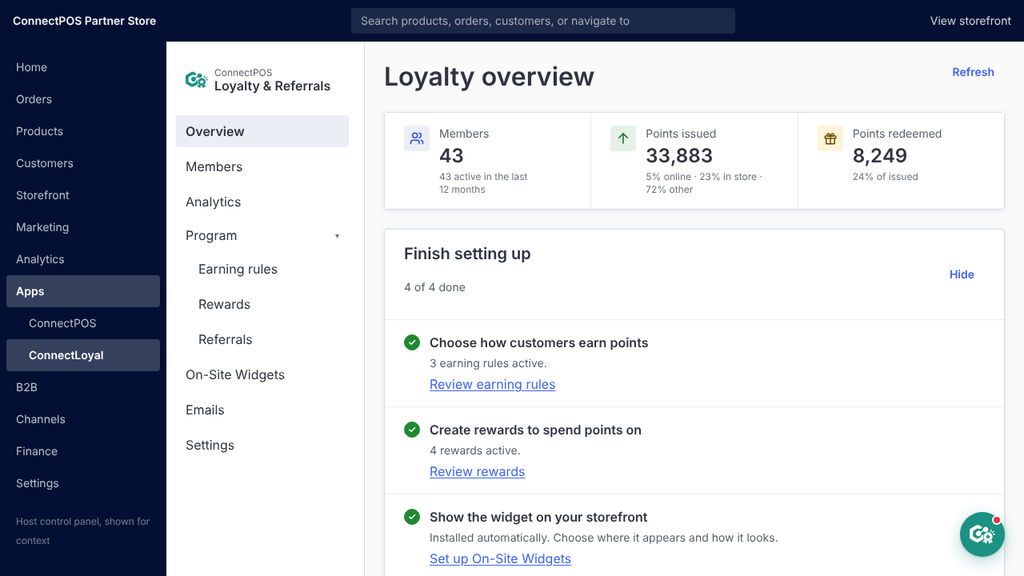
Three figures sit at the top. Members counts customers enrolled. Points issued and Points redeemed cover the current period. If points are being issued but almost none redeemed, your rewards probably cost too many points.
Finish setting up tracks the four things a working programme needs. Hide it once you are done; it stays available from the same place.
Recent activity lists points moving in and out across the whole store, newest first. It is the quickest way to confirm that a particular sale earned what it should.
Your plan at the bottom shows your plan, when it renews, and how many orders have earned points this month against your limit. The count resets at the start of each calendar month, UTC. A warning appears at 90% of the limit, because past the limit points stop being awarded until the next month or until you move up a plan.
Earning rules
Three rules come switched on. Click a rule to change it, or use the toggle to pause one without losing its settings.
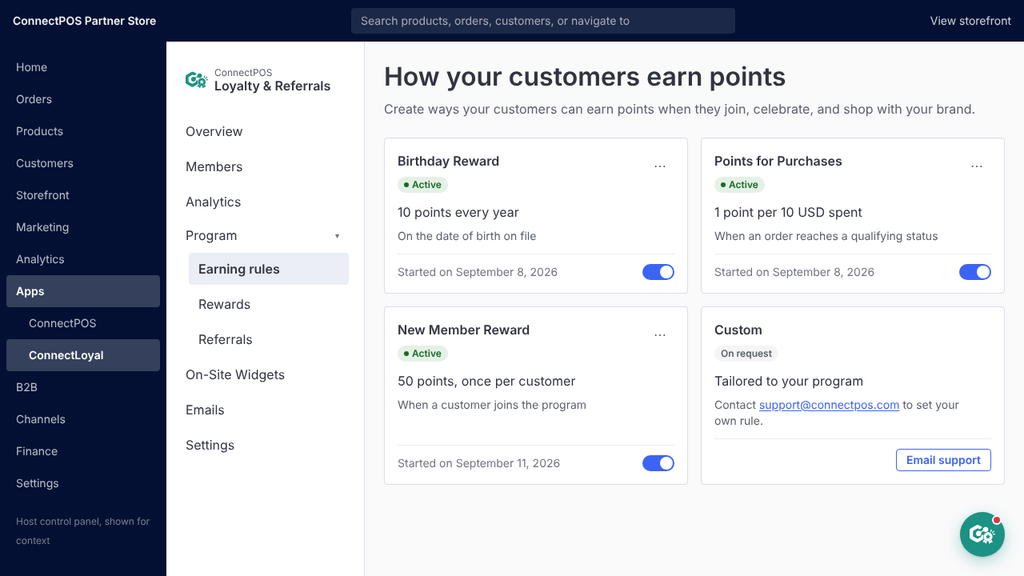
| Rule | When it fires | Suggested value |
|---|---|---|
| New Member Reward | Once, when a customer creates an account | 50 points |
| Birthday Reward | Each year, on the date of birth on the customer record | 10 points |
| Points for Purchases | Every qualifying order, online and in store | 1 point per $10 |
Choosing the rate. Start from what a reward should cost. If you want $5 off to feel reachable after about $250 of spend, set 1 point per $10 and price the reward at 500 points. That makes a point worth about one cent, which is the rate most shoppers find fair.
Birthday rewards need a birthday. The rule only fires for customers who have a date of birth on their record. BigCommerce does not collect one by default, so either add the field to your sign-up form or expect this rule to stay quiet.
Pausing a rule. Pausing stops future awards. Points already given stay where they are, and nothing is recalculated.
Rewards
Rewards are what points buy. Each one becomes a single-use discount code the moment a customer redeems it.
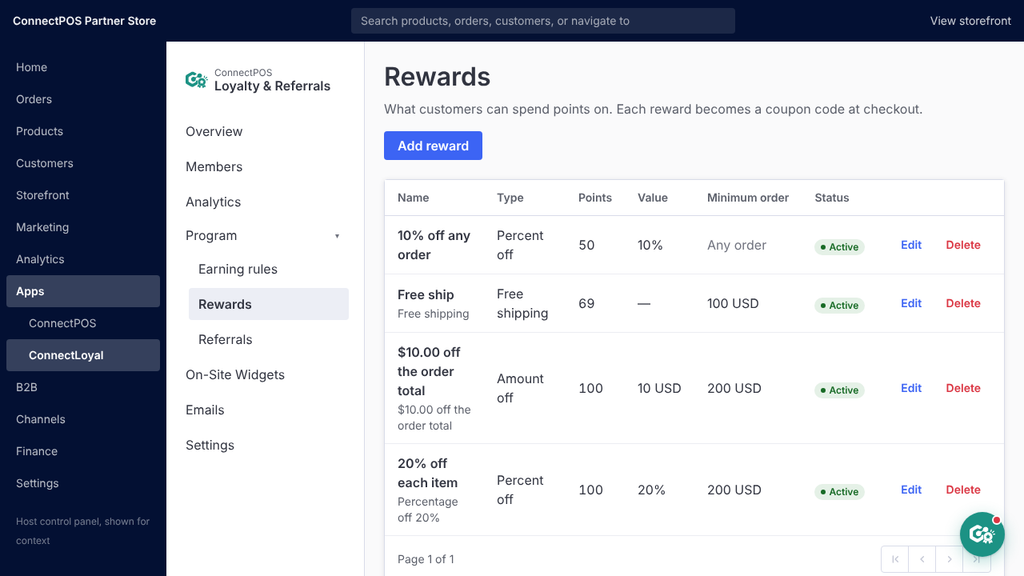
Click Add reward and fill in the name, type, points and value. The name is what the customer reads, so write it the way they would say it: “$5 off your order”, not “REWARD_5USD”.
| Type | Value field | Works at the till |
|---|---|---|
| Amount off | Money, for example 5.00 | Yes |
| Percent off | Percentage, for example 20 | Yes |
| Free shipping | Not used | No, online only |
Set a minimum order value whenever the reward could cost you more than the sale. A $10 reward with no minimum can be spent on a $12 order. Leave it empty only for small rewards.
Free shipping at the till. There is nothing to ship, so the reward is hidden on the POS screen. Customers can still redeem it online.
Deactivating a reward. An inactive reward disappears from the storefront and the till. Codes already issued keep working, so a customer who redeemed yesterday is not left empty-handed.
Referrals
Every member gets a personal link. A friend who uses it gets a discount on their first order, and the member is paid once that order goes through.
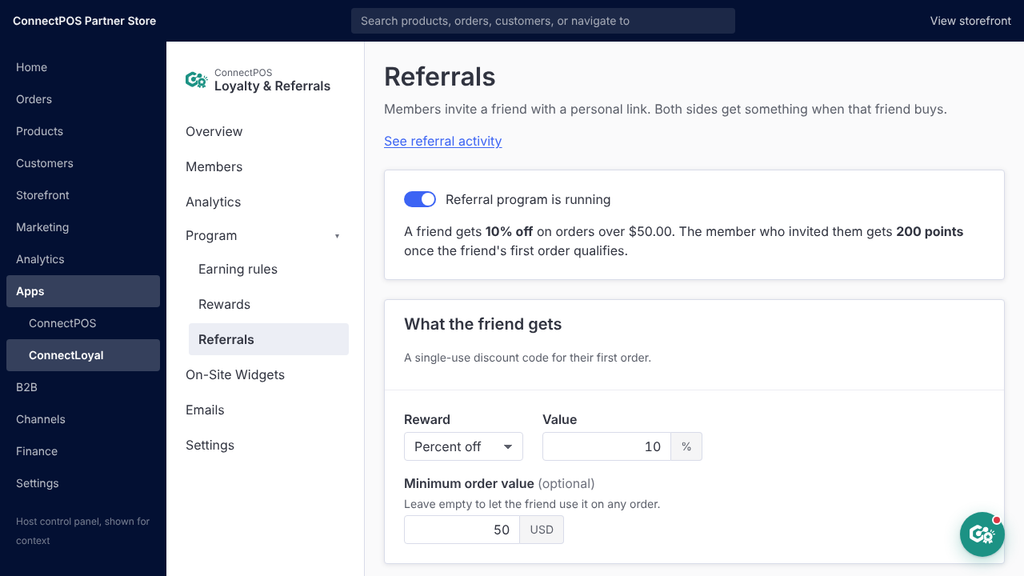
What each side gets. Set the friend’s reward first, since it is the part that persuades them. A percentage off works better than a small fixed amount, because it scales with basket size. Add a minimum order so the discount cannot swallow a tiny sale.
The member’s reward is normally points. Paying them only after the friend’s first order qualifies is what stops people inviting themselves for free points.
How the friend claims
| Setting | What the friend does | Trade-off |
|---|---|---|
| No details needed | Nothing, the discount applies at checkout | Highest conversion, but you capture no email and the link can be reposted publicly |
| Email only | Enters an email, the code is sent to it | The default. You keep the email even if they never buy, and staff can look the code up at the till |
| Create an account | Full sign-up | Strictest, and loses the most friends before they buy |
One email receives one code, for good. Opening the link again shows the same code rather than issuing another.
Fraud guards. Four switches, plus a manual block on any row in the referral list.
- New customers only — an email that already has an account does not qualify.
- Block self-referral — catches a member inviting their own address, including plus-aliases such as [email protected].
- Block disposable email domains — throwaway inboxes such as mailinator.com.
- Flag matching shipping addresses — different emails delivering to the same address. This one flags for review rather than refusing, because families share addresses.
How members share. On a computer they copy the link and paste it wherever they already talk to people. On a phone a Share button hands the link to the operating system, so any installed app works. There are no per-network buttons to maintain.
Set the link preview title and description. Without them, social networks pick something at random from your homepage.
What your customers see
The widget is the programme as your customers meet it. The preview on the right updates as you type, so you can check your wording before anyone else does.
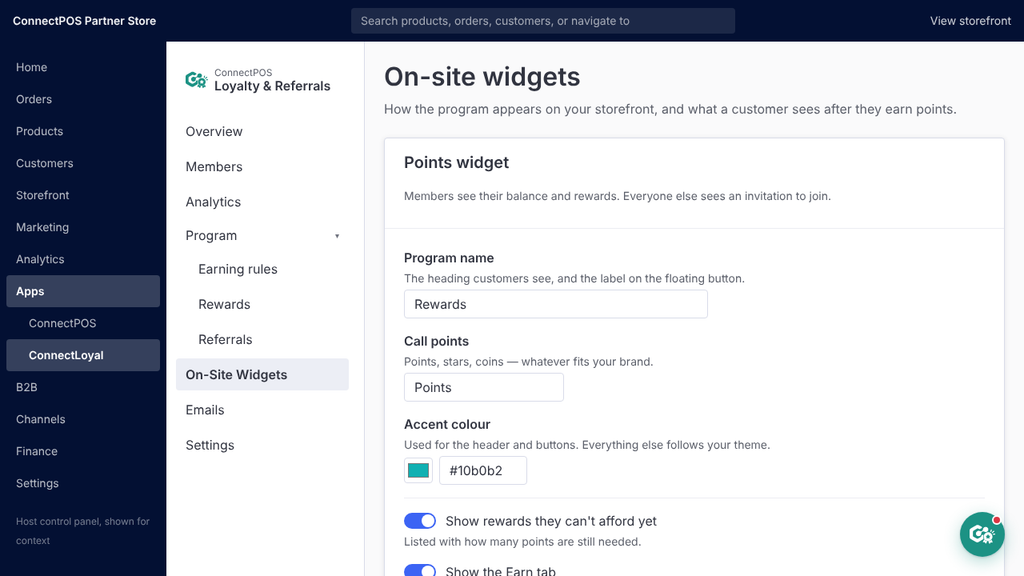
Program name and what you call points. “Rewards” and “Points” are the defaults. Change them to fit your brand, but keep both short: they appear on the floating button, which has little room.
Make it match your theme. The accent colour is the one colour you choose, and the only part of the widget that does not come from your theme. Set it to your theme’s button colour and the widget stops looking bolted on.
| The widget takes from your theme | You set |
|---|---|
| Font family and weights | Accent colour |
| Button corner radius | Program name and points name |
| Base text size | Which tabs appear |
The accent carries the widget header, the floating button, the buttons inside the panel, and the referral landing page a friend arrives on. White text sits on it in all four places, so a pale accent leaves the points balance hard to read. If your brand colour is light, use a darker shade of it here and keep the light one for your theme.
The widget carries no logo of its own. It opens inside the account page, under your own header, so your logo is already on the screen above it.
Tabs
| Tab | Shows | Turn it off when |
|---|---|---|
| Redeem | Rewards the customer can claim | Never, this is the point of the widget |
| Earn | How points are collected | Your rules are obvious from the storefront copy |
| Activity | Their own points history | Rarely, it saves you support messages |
| Refer | Their invite link and who they invited | The referral programme is off, in which case it hides itself |
Where it appears. The floating button follows the customer around the store. The account-page block sits inside their account. Most stores want both: the button for discovery, the block for people who went looking.
Earn notification. A small message after points are awarded. Keep it to one line and set it to dismiss after about five seconds. Use Preview notification to see it in place before turning it on.
Emails
Ten templates, grouped by what they are about. Each can be edited, switched off, or sent to yourself as a test.
| Group | Template | Goes to | Sent when |
|---|---|---|---|
| Points | Welcome | Member | They join and get their first points |
| Points | Points earned | Member | An order earns points |
| Points | Points expiring | Member | 30 days before a batch expires |
| Rewards | Birthday Reward | Member | On their birthday |
| Rewards | Reward redeemed | Member | They redeem, carrying the code |
| Rewards | Reward expiring | Member | Before an issued coupon stops working |
| Referrals | Referral invite | Friend | A member shares by email |
| Referrals | Friend received referral | Friend | They claim, carrying the code |
| Referrals | Referral reminder | Friend | They claimed but have not ordered. Off by default |
| Referrals | Referral rewarded | Member | Their friend’s order qualifies |
The one you cannot skip is Friend received referral. Someone has handed over an email expecting a code; it has to arrive somewhere.
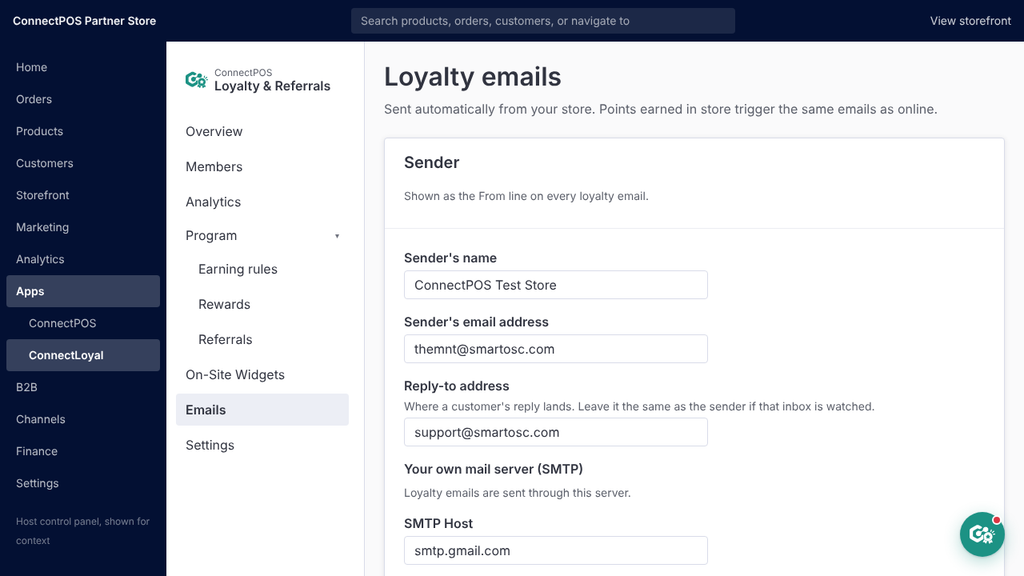
Sender details. Set the sender name and address before you go live. Add a reply-to address pointing at an inbox someone actually reads, because customers reply to these.
Merge tags. Each template lists the tags it accepts, such as *|first_name|* and *|points|*. Tags from one template do not work in another. Send a test to yourself after editing; a broken tag reaches the customer as raw text.
Members
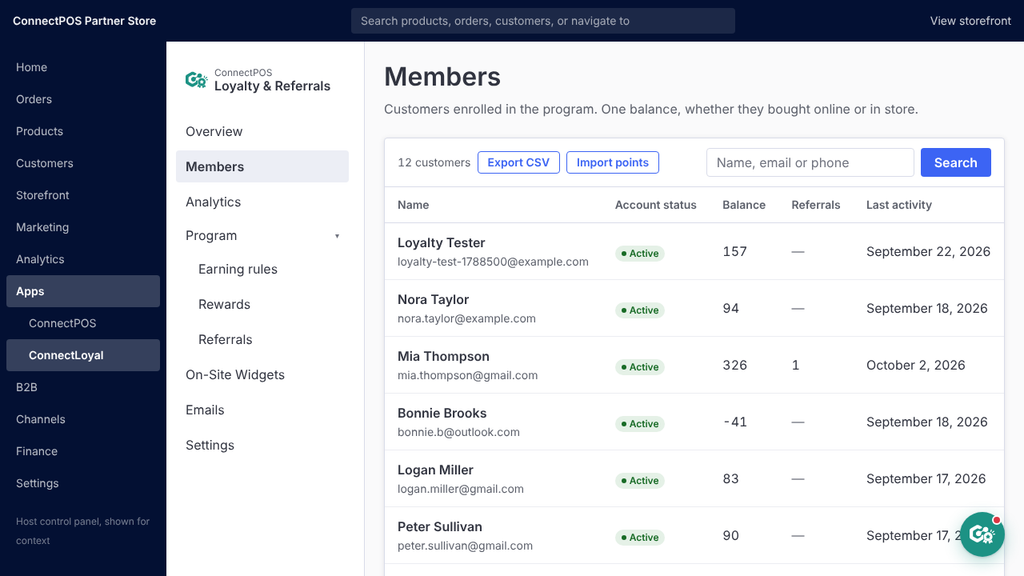
Members is where support work happens. Search by name, email or phone number, including digits only, then click a row to open the customer.
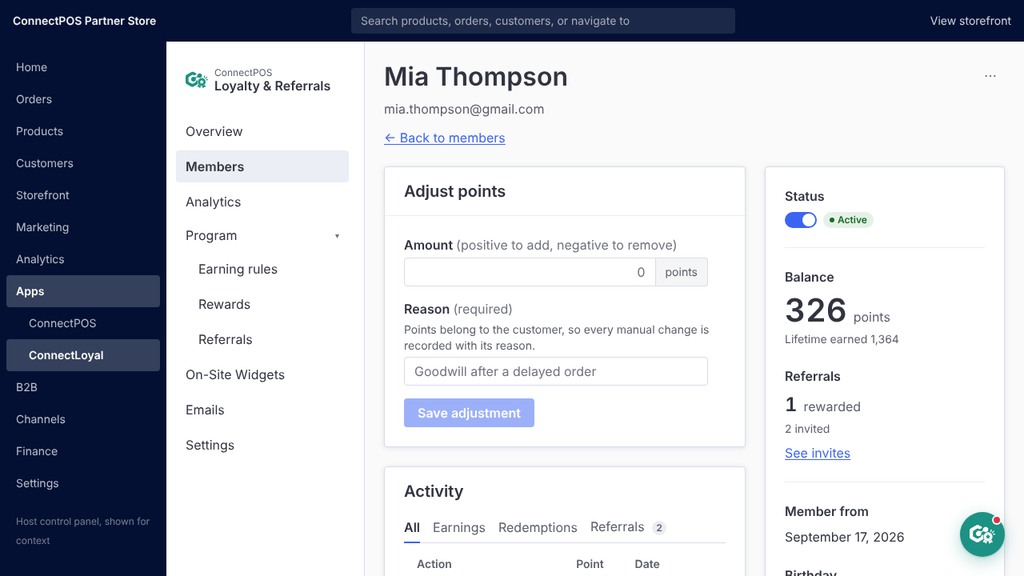
The rail on the right holds their status, balance, referral count, join date and birthday.
Adjust points adds or removes points by hand. A reason is required and it is kept with the entry, so in six months you can still see why someone received 200 points.
The Activity panel has four tabs. The Referrals tab shows that member’s invite link and everyone they invited, with the same approve and block actions as the main referral list.
Analytics
Three groups. Open one to see the detail behind it.
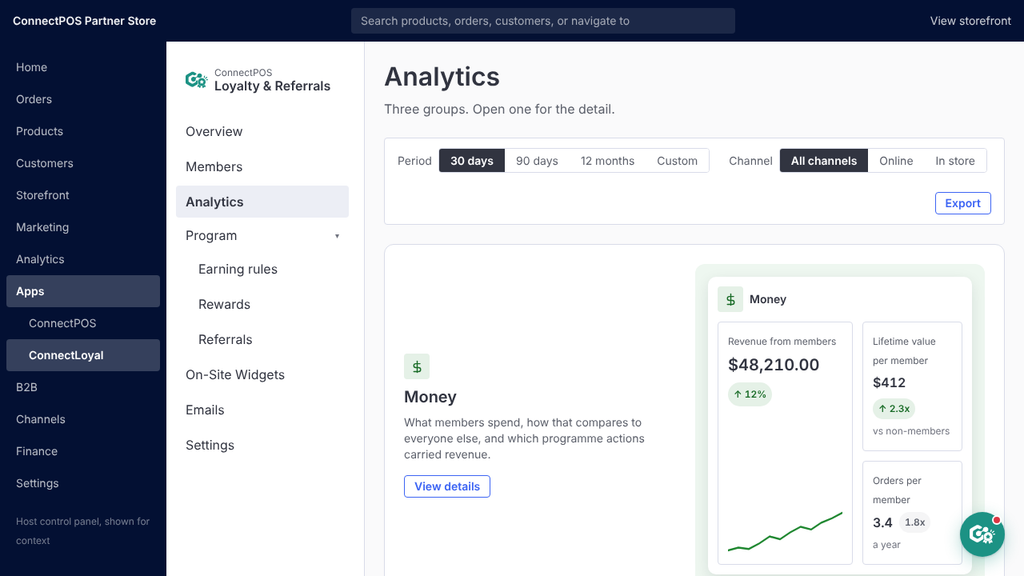
| Group | Answers |
|---|---|
| Money | What members spend against everyone else, and which programme actions carried revenue |
| Points | Points issued and redeemed, what you still owe, and when it expires |
| Referrals | How far invites get, and which members bring customers in |
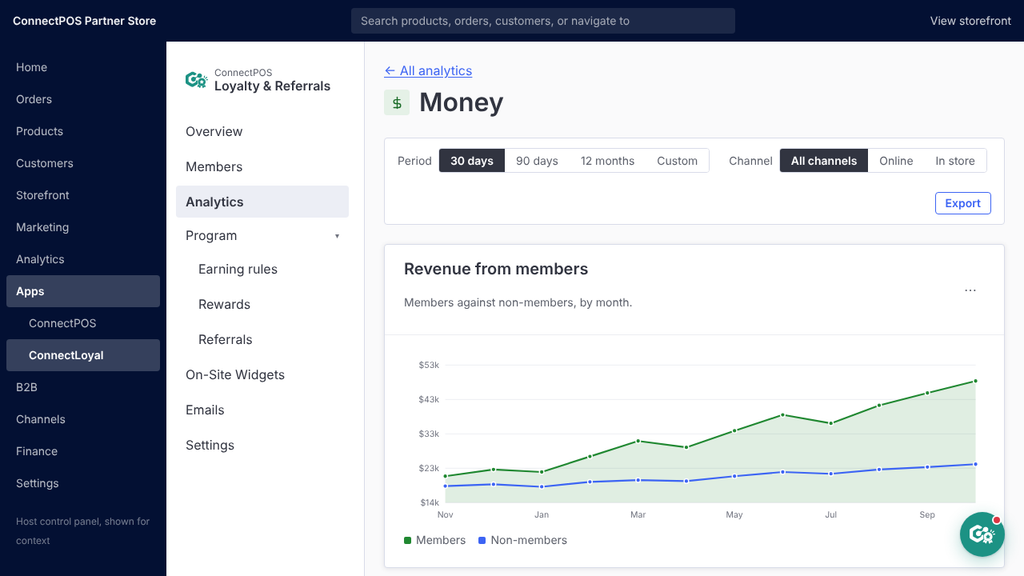
Period and Channel at the top apply to everything below them. Two figures ignore both and say so: Outstanding balance and Expiring in 30 days are snapshots of today.
Reading the numbers honestly. Since everyone with an account is a member, non-members are mostly guest checkouts, who are always going to spend less. Treat the gap as a description of where your revenue comes from, not as proof the programme created it.
Outstanding balance is money you owe. Points your customers hold will eventually be spent as discounts. Your accountant will ask for this figure at year end.
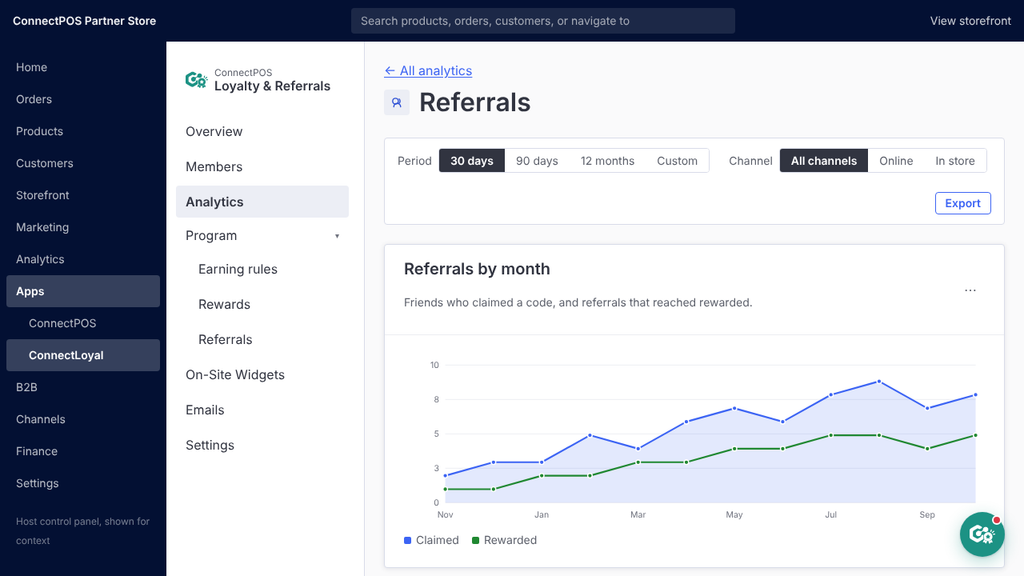
Export. Six files, emailed to you as CSV attachments. Each one follows the filters set on the page, and the first line of the file records which filters those were.
Settings
Three panels. Most stores set these once and leave them.
How points behave
| Setting | What it does | Suggested |
|---|---|---|
| Rounding | How part-points are treated | Round to the nearest point |
| Award points when an order is | Which order statuses count | Completed only |
| Points expire after | Months of inactivity before points are lost | 12 months, or empty for never |
The status setting matters more than it looks. Pick Completed and points arrive late but are rarely reversed. Pick Awaiting Fulfillment and points arrive immediately, but every cancelled order has to be clawed back. Referral rewards follow this same setting.
Connect your till. The Connection ID and API key for ConnectPOS live here. Regenerating the key invalidates the old one immediately, so the till stops awarding points until you paste the new key in.
A note on refunds. Refunding an order removes the points it earned. If the customer has already spent them, their balance goes negative. The storefront shows zero rather than a negative number, but the real figure appears in the admin and at the till. Use Adjust points if you decide to write it off.
When something looks wrong
The seven questions supported are asked most, with what to check first.
A customer says their points are missing. Open their record in Members and look at the Activity tab. If the order is not there, check three things in order: the order has a customer attached, that customer has an email address, and the order has reached one of the statuses ticked in Settings. In-store sales also need the till connection to be live.
Points from the shop are not arriving. Check the Connection ID and API key in Settings against what is in the ConnectPOS app. If the key was regenerated, the till is using an old one. Points earned while the connection was down are not lost; they arrive once it is restored.
A reward code will not apply at checkout. Check the minimum order value on the reward, and whether the code has already been used. Each code works once. Free shipping rewards cannot be used at the till.
A referral is stuck at Reward pending. The friend has ordered but the order has not reached a qualifying status. Either wait, or use Give the reward now from the row menu if you are satisfied the sale is genuine.
A referral was blocked and should not have been. Open the referral list, find the row, and choose Unblock from its menu. The most common false positive is a family sharing a shipping address, which is why that guard flags rather than refuses.
Points stopped being awarded mid-month. Check the plan panel on Overview. Past your monthly order limit, awards pause until the next month or until you move up a plan.
A number in Analytics looks wrong. Check the Period and Channel filters first. Then remember that two figures ignore them entirely: Outstanding balance and Expiring in 30 days are always as of today.
Still stuck? Use the teal button in the bottom right of any screen in the app, or email [email protected]. We can see your settings, so you do not need to explain your setup.
►►► Optimal solution set for businesses: Shopify POS, Magento POS, BigCommerce POS, WooCommerce POS, NetSuite POS, E-Commerce POS