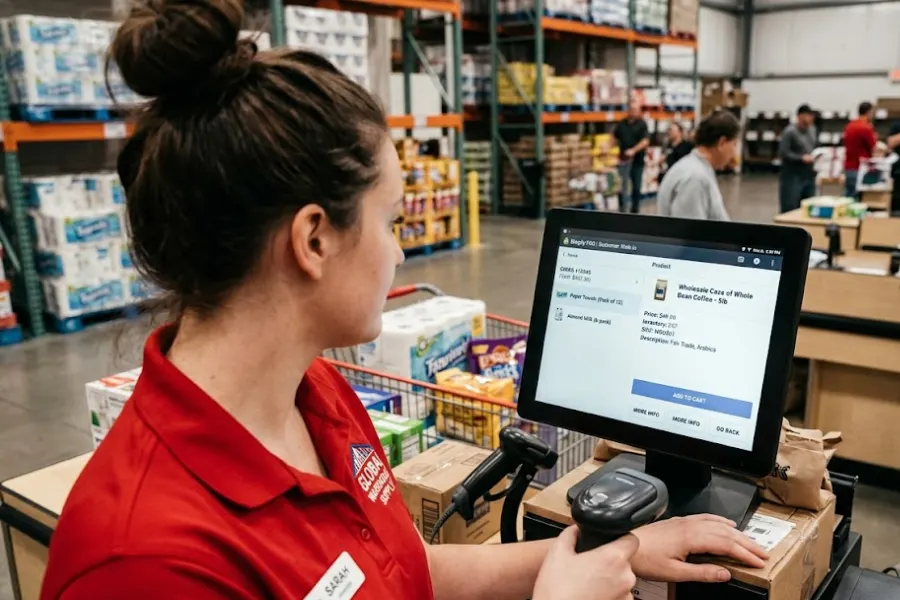
A checkout that feels perfectly normal at 10 a.m. can start dragging once the lunch queue forms. POS issues tend to surface when more transactions, devices, payment requests, and data updates hit the same store setup at once. In this guide by ConnectPOS, you’ll see the most common rush-hour failures, what to check first, and how to prepare your POS before traffic climbs again.
Highlights
- Rush-hour failures often expose network, payment, hardware, or integration limits hidden during quieter periods.
- Check the scope of a failure before restarting devices or changing store settings.
- Keep incident records and prepare backup checkout paths before the next traffic spike.
The POS Problems That Tend to Surface During Busy Hours
Most checkout failures don’t start with every register going dark. You’ll usually see smaller warning signs first, often right when staff have the least time to investigate them.
Traffic peaks can get big fast. The National Retail Federation recorded 202.9 million consumers shopping during the five-day Thanksgiving weekend in 2025, up from 197 million the year before.
Watch for these patterns:
- Separate slowdowns from full outages: A spinning payment screen, slow product search, delayed receipt, or missing item isn’t the same as a dead register. Classifying the symptom narrows your search.
- Watch the timing: Trouble that appears every lunch rush, Saturday afternoon, or promotion points toward a load-related weak spot.
- Check the scope: See whether one register, one payment reader, one printer, or the entire store is affected before changing anything.
- Read the symptoms: One frozen tablet often points to that device. Several slow registers suggest a shared network, payment, backend, or cloud problem.
- Take repeated failures seriously: Rebooting may get you through today’s queue, but recurring POS issues call for root-cause work.
A real retail case shows what an unchecked load can do. Shopify documented SweetLegs losing six figures in sales after heavy Black Friday traffic brought its old ecommerce setup down for two days.
Why Do POS Issues Spike During Rush Hours, And What Should You Check First?
Higher sales volume puts pressure on every part of checkout at roughly the same time. That’s why POS issues can appear suddenly after hours of apparently normal operation.
Start by finding the affected layer. Then test one cause at a time instead of changing the whole setup.
Network Congestion Pushes Checkout Traffic Into a Bottleneck
Registers may share the same network with payment terminals, handheld devices, printers, cameras, staff phones, and guest traffic. A network that feels fine with two active tills can struggle once every device starts sending requests.
Shopify sets 5 Mbps download as the minimum bandwidth for Shopify POS and recommends higher bandwidth for larger catalogs or several registers at one location. It also recommends keeping a backup connection available.
Check first: Confirm that every affected POS device still has internet and local network access.
- Compare another device on the same network.
- Check Wi-Fi strength, Ethernet cables, router status, and access points.
- Test a cellular hotspot or backup connection where appropriate.
- Separate POS traffic from guest Wi-Fi and bandwidth-heavy services.
Bandwidth tells only part of the story. High latency, weak Wi-Fi coverage, packet loss, and poor network design can slow checkout even when a speed test looks respectable.
Payment Connections Struggle When Transaction Volume Climbs
A cart may load instantly, then stop at the payment screen. POS activity and payment authorization can depend on different connections and outside services.
McKinsey reports that the global payments industry handled 3.6 trillion transactions carrying $2.0 quadrillion in value flows in 2024. That scale reflects how many connected systems sit behind modern payment activity.
Check first: Find out whether the failure affects one reader, one payment method, or every terminal.
- Confirm that the payment reader remains powered and connected.
- Run a test transaction on another terminal if the queue allows it.
- Check the processor or POS provider’s service status.
- Switch to an approved backup payment route when your setup supports one.
Repeated declines across several terminals deserve a different response from one faulty card reader. Scope saves time.
POS Devices And Peripherals Reach Their Limits Under Continuous Use
Hardware can behave well under light use and struggle after hours of steady transactions. Aging tablets, heat, low memory, damaged cables, background apps, and weak batteries often become more visible during heavy trade.
Receipt printers, barcode scanners, cash drawers, payment readers, and POS tablets can also fail independently.
Check first: See whether the problem follows one device while the rest of checkout continues normally.
- Inspect cables, ports, power, batteries, paper, and physical connections.
- Close unrelated apps if the POS device is short on memory.
- Move the cashier to a spare terminal when repair would hold the queue.
- Protect pending sales before deeper resets or hardware changes.
A spare checkout device can buy your team valuable time. Staff can keep serving customers while someone investigates the affected unit away from the line.
Inventory Sync And Integrations Compete With Live Checkout
Each transaction may send data to ecommerce platforms, ERP systems, loyalty tools, payment services, and inventory databases. High order volume can expose slow APIs, queued jobs, or weak integration logic.
Warning signs include stale stock numbers, missing products, late order updates, or completed sales that don’t reach another system. Those POS issues often look like checkout trouble even when the POS screen itself still responds quickly.
Check first: Determine whether the whole transaction is slow or only one connected service is behind.
- Review failed jobs, API errors, and the last successful sync.
- Check whether one system has stopped receiving updates.
- Don’t keep forcing manual syncs during the rush.
- Look for reports, imports, exports, or scheduled jobs running in the background.
Connected inventory management software also makes it easier to see whether stock trouble starts at checkout or farther down the data flow.
Software And Configuration Faults Surface Under Higher Load
Old POS versions, device operating systems, third-party apps, and recent configuration changes may look harmless during quiet periods. Heavier usage can expose memory pressure, stuck processes, failed updates, or software conflicts.
Sometimes the timing provides the best clue. A problem that starts the morning after a new integration or system change deserves close attention.
Check first: Capture the exact error and note the most recent software, integration, or setting change.
- Confirm that affected devices run supported versions.
- Restart only the problem device when pending sales are safe.
- Review recent permission, payment, and location changes.
- Schedule major updates outside busy trading hours.
One change at a time. If you update three apps and reset two settings together, finding the original cause gets much harder.
External Service Incidents Can Look Like Local POS Failures
Your Wi-Fi may work. The tablet may be fine. A payment gateway, DNS provider, cloud POS service, or another dependency can still be unavailable.
That type of POS issue often affects several registers at once. Rebooting every device won’t repair a service running outside your store.
Check first: Compare several registers and test whether unrelated internet services still work.
- Review available provider status information.
- Match known error codes across affected devices.
- Save screenshots and exact failure times.
- Send support the location, transaction behavior, and steps already tried.
Good evidence speeds up escalation and prevents staff from changing healthy local settings.
Staff Pressure Turns Small POS Friction Into Larger Delays
Rush periods change user behavior too. More employees log in, process returns, apply discounts, search inventory, split payments, and edit orders at the same time.
A two-second delay can also turn into repeated clicks or duplicate payment attempts when staff think nothing happened.
Check first: Ask what action happened immediately before the error appeared.
- Look for duplicate payment attempts or repeated taps.
- Confirm staff have the right store and account access.
- Close unnecessary apps running beside the POS.
- Set a clear point where staff stop troubleshooting and use the backup process.
Train teams to identify and escalate. Deep repair work can wait until the queue is under control.
Avoid Making A Rush-Hour POS Problem Worse
When a register stops responding, resetting everything can feel tempting. That move may erase useful evidence or place pending sales at risk.
Keep these rules in place:
- Protect pending transactions first: Check open carts, offline sales, card payments, and unsynced orders before logging out.
- Avoid destructive resets: Don’t delete apps, factory-reset devices, or rebuild configurations during active trade without a clear reason.
- Change one variable at a time: Test the network, hardware, payment path, and software separately.
- Delay non-urgent updates: Firmware, operating system, POS, and integration updates belong outside the rush.
- Keep checkout moving: Shift customers to working registers, cash lanes, approved offline processes, or Mobile POS where your setup supports it.
- Save evidence: Record error messages, transaction times, affected devices, and every step already attempted.
Once the line starts moving again, return to the original POS issues with a clear record. Quick fixes during service shouldn’t become the end of the investigation.
Turn Peak-Hour Failures Into A POS Troubleshooting Record
A slowdown that disappears after lunch can be hard to reproduce later. Treat each incident as data instead of relying on staff memory.
Your record should capture the following details:
- Start time: Compare the failure against transaction volume, promotions, staff shifts, and scheduled jobs.
- Affected layer: Label the incident as network, payment, hardware, POS app, integration, inventory sync, or outside service.
- Location and device: Note whether one terminal, one store, or several stores showed the same behavior.
- Error details: Save exact messages and screenshots.
- Checkout timing: Track transaction time, payment response, failed sales, and device disconnects.
- Repeat frequency: Look for the same code or symptom across several busy periods.
Retailers can also use Report & Analytics to compare sales and store activity across locations. Historical records give recurring POS issues a measurable pattern instead of leaving teams with ‘it gets slow sometimes.’
That record can guide hardware upgrades, network work, integration changes, and staff training.
Prepare Your POS Before The Next Rush
Pre-shift testing catches many problems when fixing them still costs minutes rather than lost sales. Run the check before lunch periods, weekend peaks, product launches, and major promotions.
Focus on the areas most likely to stop checkout:
- Run a sample transaction: Test registers, readers, scanners, printers, receipts, and network access.
- Separate store traffic: Keep checkout devices away from guest Wi-Fi, streaming, and other heavy network use.
- Plan secondary connectivity: Staff should know how and when to switch networks.
- Keep spare hardware ready: Prepare charging cables, payment readers, tablets, and printer supplies.
- Move heavy jobs off peak: Schedule exports, imports, updates, and large data jobs during quieter periods.
- Practice offline selling: Staff should know which functions remain available and what syncs after reconnection.
- Train a short diagnosis sequence: Identify scope, protect the sale, test the connection, then escalate.
- Review system health after each incident: Look at latency, connection history, Wi-Fi strength, and device logs.
Microsoft Dynamics 365 Commerce rates network latency of 0 to 50 ms as good, 50 to 100 ms as acceptable, and above 100 ms as poor. Its documentation notes that latency above 150 ms slows most POS operations.
Numbers like these turn a vague complaint about ‘slow checkout’ into something your IT team can test.
What to look for in a POS built for high-traffic retail?
For stores where rush-hour pressure regularly exposes the same weak points, the POS infrastructure itself is often worth a closer look. ConnectPOS is built around the conditions that busy retail operations run into most – checkout speed, connectivity loss, stock accuracy, and staff flexibility across multiple locations.
ConnectPOS supports retail operations through:
- Offline Mode: Supported stores can continue selling when internet access drops. Transaction data syncs once the connection returns. Global Vapors and Dampfi have both used ConnectPOS offline selling during connection loss.
- Real-Time Inventory Sync: Inventory, orders, products, and customer information stay connected across physical and online stores.
- Mobile POS: Staff can check stock and process sales away from the fixed counter when queues build.
- Several Payment Methods: Retailers gain more checkout options if one payment route becomes unavailable.
- Direct Ecommerce Integration: Product, order, customer, and stock data move between connected channels without repeated manual entry.
- Real-Time Store Visibility: Managers can review sales, staff activity, and product trends across locations.
- Custom Checkout Workflows: Stores can shape screens and transaction steps around the way their teams actually sell.
Pricing (monthly per register):
- Standard: $49
- Advanced: $79
- Premium: $99
- Enterprise: Custom quote
Visit our Pricing page for more information.
For a high-volume store, that saved minute compounds quickly across dozens or hundreds of transactions. Retailers seeing repeated rush-hour failures should review whether their current POS can handle offline selling, live inventory, flexible checkout, and growing transaction volume.
FAQs: POS Issues
1. What are the most common POS issues during rush hours?
Common problems include network congestion, slow payment authorization, frozen devices, disconnected peripherals, integration delays, and stale inventory data. Start by identifying whether the failure affects one device or the wider store setup.
2. Why does my POS work normally until the store gets busy?
Higher transaction concurrency adds more network requests, payment activity, data sync, and device use. Weak points that stay hidden during quiet hours can become visible once several registers operate at once.
3. What should I check first when a POS suddenly becomes slow?
Check the scope before restarting anything. Identify affected devices, test network access, review payment status, and capture any visible error messages.
4. Can a POS system keep working when the internet goes down?
Some POS systems support offline transactions, but the available functions differ by provider and configuration. Payment rules may also change while connectivity is unavailable, so stores should test their offline procedure before relying on it.
5. How can retailers prevent POS issues before peak hours?
Run pre-shift tests, separate POS network traffic, keep backup internet ready, maintain spare hardware, move updates outside busy periods, test offline processes, and train staff on a short troubleshooting sequence.
Final Thoughts
Rush-hour POS issues usually expose a weak point that quiet periods hide. Check the scope first, then work through connectivity, payments, devices, integrations, software, and outside services without changing everything at once. Good incident records also make recurring patterns easier to fix before the next rush.
If you’re scaling across locations, managing a growing team, or simply finding that your current setup can’t keep up when traffic peaks, we’re happy to walk through your situation. Chat with us to talk through where your current POS is under pressure and what a better-fit setup could look like.
Chat with our team►►► Optimal solution set for businesses: Shopify POS, Magento POS, BigCommerce POS, WooCommerce POS, NetSuite POS, E-Commerce POS