A line can look calm from the lobby and still feel messy behind the screen. Cashiers pause, modifiers pile up, and one wrong combo can throw off the kitchen two minutes later. Quick service restaurant POS systems need clean logic before the rush starts, not during it. In this guide, we’ll map out how to set up combos, modifiers, and upsells so orders move faster, tickets stay clearer, and your team has less guesswork.
Highlights
- Clean combo, modifier, and pricing logic cuts extra taps, speeds up checkout, and keeps order entry easier during rush hours.
- Strong setup starts before launch, with clear menu structure, selection rules, kitchen routing, and pricing mapped across every sales channel.
- Better results come from ongoing testing and reporting, so you can refine upsell timing, remove low-value options, and keep the order flow tight.
Hidden Reason Your QSR Lines Feel Longer Than They Should
Most long lines don’t start at the front counter. They start inside the order flow, where menu logic feels clunky, and staff need extra taps just to finish one simple meal. Oracle’s Restaurant Scene survey found that 45% of consumers feel wait time is longer when they order in person, and 38% of dine-in guests feel less important than online orders. Even small POS delays can feel bigger than they are.
That’s why some teams look busy all shifts and still feel a step behind. The screen is slowing them down.
- The delay often sits in the setup: A cashier can work fast and still lose time when the POS asks too many questions in the wrong order. That pause may last only a few seconds, yet it repeats on every ticket.
- Messy combos create friction: Staff should not need to remember which drink belongs to which meal or which side comes with which size tier. When combo paths feel unclear, people stop, think, and tap around.
- Modifier overload adds drag: A burger with toppings, sauce choices, bun swaps, and side changes can become a mini maze. The longer that path gets, the more room you leave for slow entry and wrong selections.
- Poor button labels confuse the team: “Meal 1,” “Regular Combo,” and “Upgrade Set” may sound fine during setup. At the counter, those labels can feel vague and lead to extra questions.
- Upsells can interrupt the sale: A prompt that appears too early, or one that appears every time, can break the rhythm of ordering. Staff stop listening to the guest and start fighting the screen.
- Kitchen confusion starts at the front: When order details come through messily, the back of house loses time too. A missed modifier at the counter often becomes a remake at pickup.
A clean setup makes the whole store feel faster. Customers notice shorter wait times, and staff notice fewer ‘hold on’ moments during the rush.
What to Prepare Before Configuring Quick Service Restaurant POS Systems?
A good setup starts away from the terminal. You need a clear map of the menu, the pricing rules, and the kitchen path before anyone clicks the first setting.
That prep work saves a lot of rework later. It also keeps your POS from turning into a patchwork of quick fixes.
- Map the menu first: List every core item, meal, side, drink, topping, and add-on. Keep similar items grouped in a way that matches how people actually order.
- Separate item types early: Main products, combo components, modifier groups, and upsell items should live in clear buckets. That structure keeps your team from mixing meal logic with add-on logic.
- Decide which modifiers need rules: Some choices should be required, like drink size in a combo. Others should stay optional, like extra sauce or no onions.
- Set selection limits before launch: Single-select and multi-select rules matter. A drink choice may need one answer, while toppings may allow three.
- Write pricing rules in plain language: Free swaps, paid upgrades, premium sides, and extra toppings all need clear logic. If the rule feels hard to explain in one sentence, it’ll feel harder at the register.
- Match the setup across channels: Counter orders, self-service kiosks, QR menus, pickup, and delivery should follow the same structure. Customers should not see one combo path online and a different one in store.
- Check the kitchen route: Orders must reach the right prep station with clear wording. A clean front-end screen means little if the ticket still lands in the wrong place.
Quick service restaurant POS systems work better when the groundwork is simple and complete. Once that foundation is in place, the rest of the setup becomes easier to manage.
How to Set Up Quick Service Restaurant POS Systems for Combos, Modifiers, and Upsells?
The setup should follow the way people buy, not the way software menus look. Start with the most common orders, then shape the screen around speed, clarity, and kitchen accuracy. McKinsey found that more than 70% of restaurant executives said resource or capability limits kept them from doing this work at full scope. This is one more reason to keep the setup simple from the start.
Build combo structures around real ordering habits
Fixed combos work well for stores with a few high-volume meals that sell all day. They give staff a shorter path, keep the screen cleaner, and cut down on back-and-forth at the counter. Build-your-own combos make sense when guests expect more choice, but the order path still needs guardrails.
Group the meal in the way the customer thinks about it. Main item first, then side, then drink. Keep premium upgrades visible but not noisy. A simple example is a lunch combo that defaults to medium fries and a regular drink, then lets the cashier tap one upgrade button for large fries or a premium side. That kind of flow keeps the order moving and still leaves room for a higher ticket.
Create modifier groups that keep checkout moving
Modifiers should help the cashier, not test their memory. Each group needs a clear purpose and a clear limit.
- Group modifiers by item type: Burgers, drinks, sides, desserts, and toppings should each have their own logic. That keeps the screen tighter and stops unrelated choices from appearing together.
- Use auto-popup only when it helps: Required choices should appear right away. Optional extras do not need to pop up every time.
- Keep rules easy to follow: Set a minimum and maximum where it makes sense. A combo drink needs one selection, while a topping group may allow several.
- Label buttons in plain words: “No pickles,” “extra cheese,” and “large fries” are easier to read than internal shorthand. Staff need instant clarity during a rush.
- Write for the kitchen too: Modifier text should make sense on a kitchen display, not just on the cashier screen. Short, direct wording keeps the line tighter in the back as well.
- Trim low-value choices: If hardly anyone uses a modifier and it clutters the flow, remove it or move it deeper in the path.
POS for quick service restaurants run better when modifier groups stay focused. Fewer taps and clearer language usually lead to faster checkout and fewer correction steps.
Add pricing rules for add-ons, swaps, and upgrades
Pricing should feel predictable to staff and easy to explain to guests. Hidden charges or odd exceptions tend to slow the line and trigger awkward conversations. According to Deloitte, 88% of restaurant executives said high input costs were a top concern, so weak pricing logic does not just slow the line; it can hurt margin too.
- Price common add-ons clearly: Extra cheese, bacon, sauces, milk alternatives, and premium sides need simple set amounts. Cashiers shouldn’t guess or remember special cases.
- Decide where swaps stay free: A guest swapping one sauce for another may not need a charge. A guest replacing fries with onion rings probably does.
- Set size surcharges once: Small, medium, and large upgrades should follow one pattern across the menu. That makes the logic easier to train and easier to trust.
- Protect margin on premium choices: Specialty drinks, extra protein, and premium desserts should never hide inside a low-price combo path. The price difference needs to appear at the right moment.
- Test real tickets before launch: Put sample orders through the system and read the totals out loud. A quick trial often catches pricing gaps before customers do.
- Keep override access limited: Managers may need room to fix edge cases. Cashiers should not need to override routine pricing.
Clear pricing keeps the line calmer. It also keeps staff from sounding unsure when a guest asks, “Why did that total change?”
Place upsell prompts where customers are most likely to say yes
Upsells work best when they feel like a natural part of the order. Timing does the heavy lifting here. Push the add-on too early, and it feels random. Push it too late, and the guest has already mentally checked out.
Think about the points where the decision already exists. Right after a main item is selected, a combo upgrade makes sense. Right after a meal is built, dessert or extra protein may land well. Yet the prompt should stay short. “Make it a combo?” works better than a stack of five options.
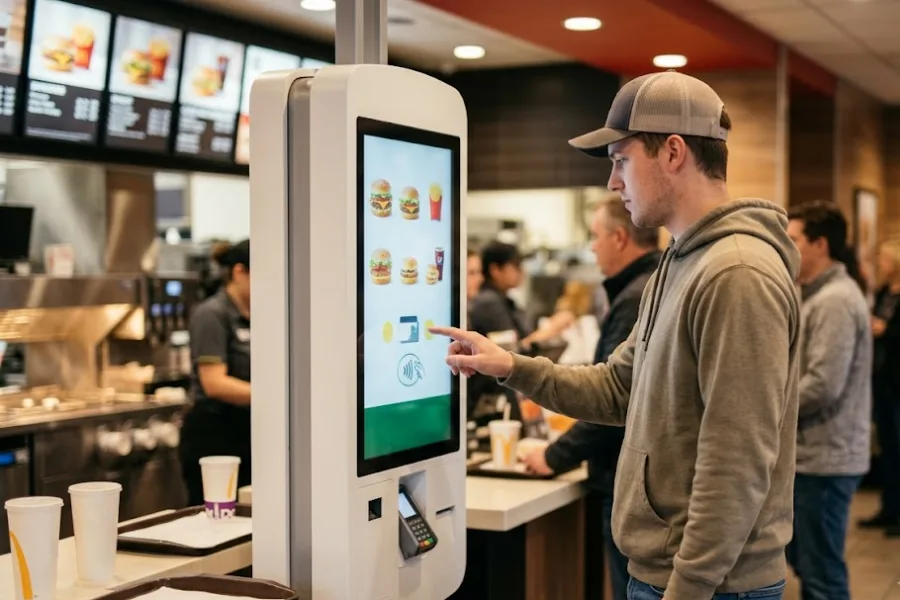
Customer-facing screens, kiosks, and QR menus can help carry that message without asking staff to recite it every time. For example, ConnectPOS can surface a combo suggestion after the guest selects a burger, then show one clean path to add fries and a drink. That feels smooth. It does not feel like a sales script.
Quick service restaurant POS systems should support upsells inside the flow, not force them on top of it. When prompts appear at the right point, the basket grows, and the order still feels easy.
Connect combo and modifier setup to the kitchen execution
A clean order path at the counter must turn into a clean ticket in the kitchen. That link needs just as much attention as the front screen. TechCrunch reported that some restaurants were juggling an average of three delivery apps and 15 different menus at each location, and menu or connectivity errors caused 10% to 15% of orders to go wrong or arrive late once they were pushed into the POS.
- Send order details in the right order: Main item, modifier, add-on, and note text should appear clearly. Kitchen staff need to scan and act fast.
- Route items to the right station: Drinks, grill items, fries, and desserts should not pile into one place if your kitchen uses separate prep points. Good routing cuts confusion.
- Keep wording consistent across channels: In-store, kiosk, QR, and delivery orders should all land in the same language style. That helps the back-of-house read tickets faster.
- Show substitutions clearly: “No onions” and “swap fries for salad” should stand out without burying the main item. Staff should not hunt for that detail.
- Limit free-text notes: Open notes create a mess when they replace structured choices. Use preset modifiers wherever possible.
- Check display logic during live tests: A ticket may look clear on the counter screen, but cluttered on the kitchen display. Review both views before launch.
Fast ordering means little when the kitchen sees a messy ticket. That’s where remakes, missed items, and pickup delays start.
Test, train, and refine before full rollout
No POS setup is perfect on the first pass. Real traffic exposes gaps faster than any planning sheet can.
Run a soft launch with common rush-hour orders. Put through family meals, heavy modifier tickets, drink swaps, premium sides, and a few awkward custom requests. Watch where staff hesitate. Watch where totals surprise them. Then fix those points before the full push.
Training should follow real order paths, not only general menu tours. Let staff practice the five or ten most common ticket types until the taps feel natural. Besides that, teach them how to handle the odd cases. Missing modifier, wrong combo, premium substitution, split payment. Those are the moments that separate a calm team from a flustered one.
After launch, keep reading the numbers. Look at combo attachment rate, modifier use, upsell conversion, and average ticket time. QSR POS setup gets better through small rounds of cleanup, not one big setup day.
Setup Mistakes That Slow Down Your POS and Frustrate Staff
Some setup problems look harmless when you build the menu. They become expensive when the lunch line hits, and everyone needs answers fast.
That’s why cleanup work matters just as much as setup work.
- Too many modifier layers: Staff should not drill through three screens to remove onions or add bacon. Long tap paths pile up during peak hours.
- Vague combo names: Labels that sound nice in a planning doc can feel useless on a live screen. Staff need terms they can spot instantly.
- Hidden pricing jumps: Surprise charges create slow moments at checkout and extra guest questions. The price change should appear clearly and early.
- Bad upsell timing: A prompt that fires on every item becomes background noise. Staff begin to ignore it, and guests get tired of it.
- Mismatch across channels: If the in-store combo path looks different from the kiosk or QR path, training gets harder, and errors grow.
- Weak testing before launch: A menu that looks clean in setup mode can still break under real ordering speed. Trial runs catch that.
- No post-launch review: Stores change, menus change, guest habits change. A setup that never gets revisited starts to feel dated fast.
POS setup for fast-service teams should feel easier after a few weeks, not harder. If your team still sounds frustrated, the setup probably needs another pass.
What Strong Reporting Should Tell You After Setup Goes Live
Once the system is live, the numbers should tell a clear story. You want more than sales totals. You want signs that show where the order flow is working and where it still feels rough.
Good reporting turns guesswork into action.
- Top-selling combos: You need to know which meals drive volume so the fastest paths stay front and center.
- Modifier usage patterns: Some modifiers pull a lot of traffic. Others sit unused and clutter the screen.
- Upsell conversion: See which prompts actually get accepted. That tells you which suggestions belong in the flow and which ones need to go.
- Ticket-time slow points: If one product path keeps taking longer, there may be a setup issue behind it.
- Margin pressure from substitutions: Frequent premium swaps or underpriced add-ons can chip away at profit quietly.
- Channel differences: Pickup, kiosk, QR, and delivery may show different combo behavior. That data helps you shape each path more carefully.
- Screen cleanup needs: Reporting can show when an item or prompt adds little value. Remove the noise and keep the flow tighter.
When report & analytics stay close to daily operations, QSR POS setup becomes easier to manage. The store runs on clearer choices, not gut feel.
ConnectPOS Brings Flexible POS Setup to Fast-Moving QSR Operations
Quick service teams do not have time to fight with messy screens or rigid menu logic. We need a setup that keeps combos clear, modifiers simple, and upsells easy to trigger during the rush. ConnectPOS gives QSR brands the room to shape that flow around how they really sell.
- Raw-Material inventory management: ConnectPOS tracks stock at the raw-material level, not just by finished item. That helps teams connect each combo, add-on, and modifier to real ingredient use, so counts stay closer to daily reality.
- Real-Time Analytics: Live sales data shows what is moving, what is slowing staff down, and which upsells are gaining traction. That makes menu cleanup and prompt changes easier during peak periods.
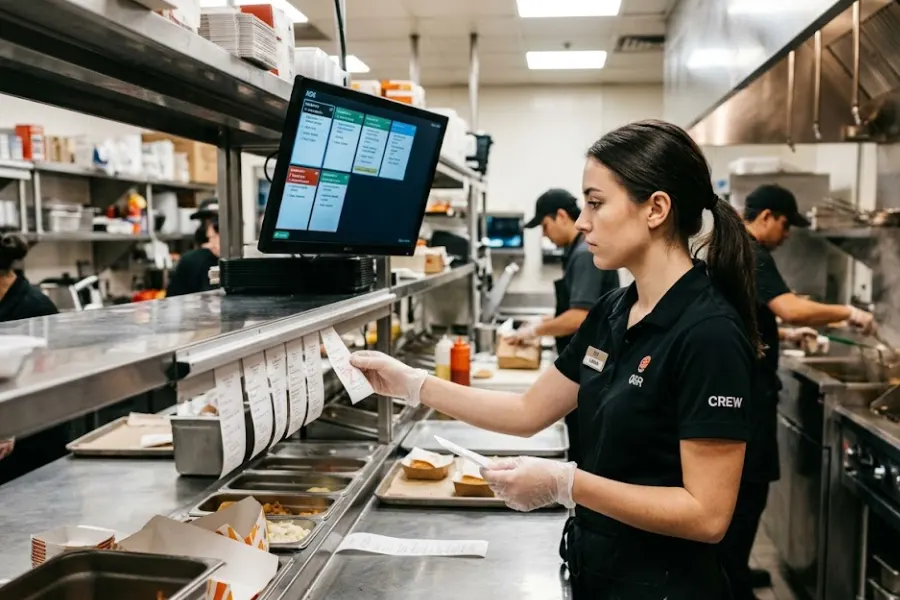
- Digital Kitchen Displays: Orders move straight from the POS to the kitchen with clear item details and modifier notes. Staff spend less time repeating tickets and more time keeping service on pace.
- Smart Combo Prompts: Combo suggestions can appear at the right moment in the order path. That gives cashiers a faster way to build meals and gives guests a simple route to add drinks, sides, or size upgrades.
- Self-Service & QR: ConnectPOS supports self-service journeys that match modern QSR habits. Customers can browse, order, and pay with less friction, which helps ease pressure at the counter.
- Customer Loyalty: Built-in loyalty program tools help teams turn quick visits into repeat visits. Purchase history and reward rules stay connected, so promotions feel more relevant and less random.
ConnectPOS fits brands that want more control over daily order flow. It brings front counter speed, kitchen clarity, and stronger upsell support into one place, which is exactly what quick service restaurant POS systems should do in a busy QSR setting.
FAQs: Quick Service Restaurant POS Systems
1. What is the best way to structure combos in a QSR POS?
Start with the orders people buy most often. Keep the path short, use default choices where they make sense, and show upgrade options at the right point instead of all at once.
2. How many modifiers should one item have?
Only include the choices guests actually use. A short group with clear labels is easier to manage than a long list that slows staff and confuses the kitchen.
3. Should substitutions be free or paid?
That depends on the food cost and the guest’s expectations. Standard swaps can stay free, while premium sides, extra protein, or specialty drinks usually need a charge.
4. What upsells work best in quick service restaurant POS systems?
Combo conversions, size upgrades, extra protein, desserts, and premium drinks tend to work well. The prompt needs to appear at the right time and stay short enough to keep the order moving.
5. How can kiosks or customer-facing screens improve upsell results?
They show prompts visually and keep the suggestion consistent on every order. That takes pressure off staff and gives guests a clear choice without slowing the line.
Final Thoughts
Clean setup changes the pace of the whole store. Quick service restaurant POS systems should keep combos simple, modifiers clear, upsells well timed, and kitchen tickets easy to read. When the logic feels right, staff move faster and guests feel less friction at checkout. ConnectPOS gives QSR teams the flexibility to build that kind of flow from day one. When you’re ready to shape a setup that fits your operation, contact us and let’s talk through what that could look like for your team.
►►► Optimal solution set for businesses: Shopify POS, Magento POS, BigCommerce POS, WooCommerce POS, NetSuite POS, E-Commerce POS