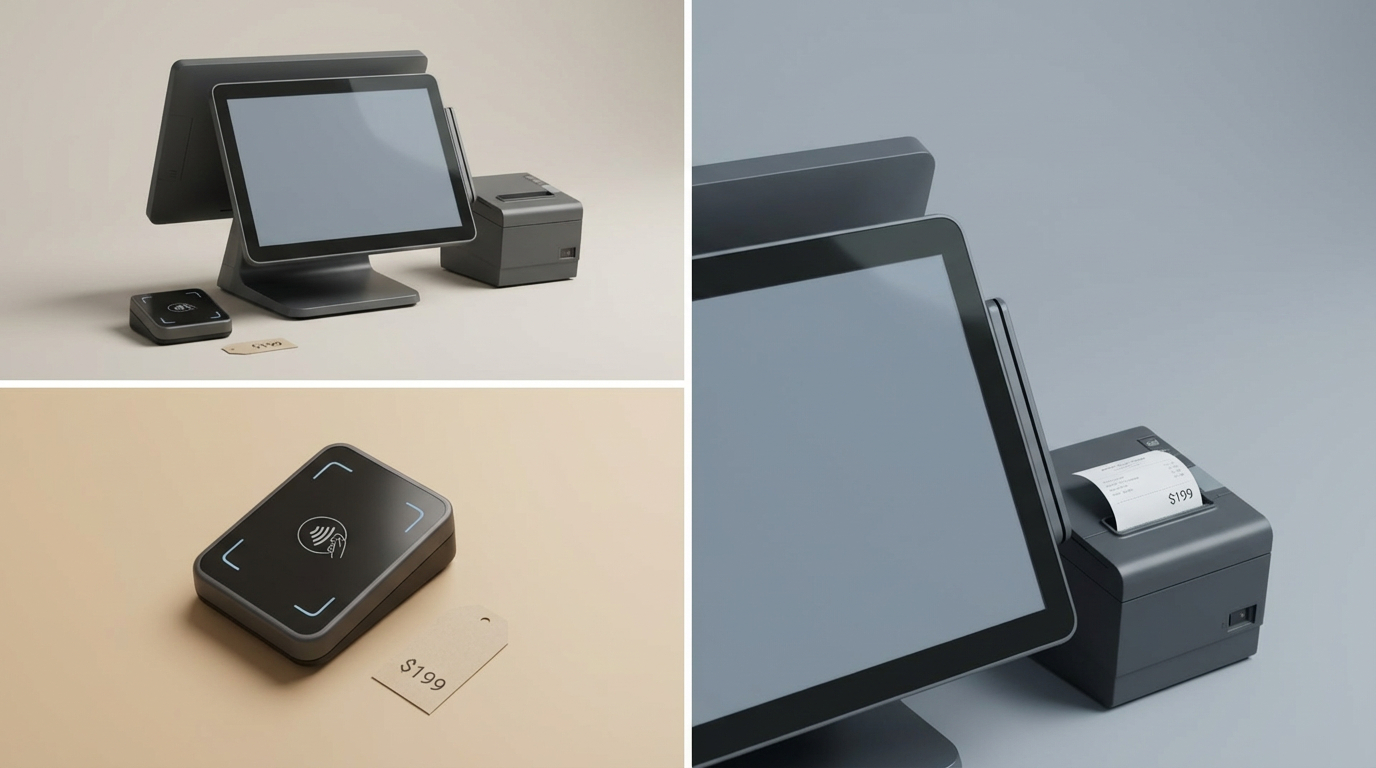
A wrong price at one branch can become a chain-wide reporting mess before lunch. POS data entry needs clear ownership, fixed steps, and records that show who changed what. In this ConnectPOS guide, we’ll explain how permissions, approval paths, audit trails, and store reports keep retail data accurate across many locations.
Highlights
- Each POS action needs a named user, store, device, and timestamp.
- High-risk entries need approval limits, reason codes, and protected audit records.
- The head office should track exceptions before small errors become costly patterns.
The Role of POS Data Entry in Multi-Store Retail
Retail data enters the POS through sales, stock work, customer service, and cash control. Some records come straight from scanners or system links. Others still depend on staff input.
POS data entry covers the details staff create, edit, confirm, or correct inside the retail system. Automated capture records card payments, sale times, terminal IDs, and stock deductions. Manual work fits tasks where staff judgment or a physical check is still needed.
Common entry points include:
- Checkout transactions: Items, quantity, price, tax, payment, cashier, and sale time.
- Product and price updates: SKUs, barcodes, tax classes, costs, and selling prices.
- Inventory receiving: Goods received against a purchase order or supplier note.
- Stock adjustments: Damage, loss, counting gaps, or found stock.
- Store transfers: Quantity, sending branch, receiving branch, and transfer status.
- Refunds and voids: Original sale, reason, user, and approval.
- Customer details: Names, contact fields, notes, and consent records.
- Shift and cash records: Opening floats, removals, closing totals, and shortages.
Every record should carry four tags: user, store, terminal, and timestamp. Those tags help finance, inventory, ecommerce, and customer teams trace the source later.
Where POS Data Entry Problems Start Across Several Stores
Most POS data entry errors don’t begin with a dramatic system failure. Small shortcuts cause the trouble. One branch copies a product, another keeps a side spreadsheet, and head office receives three versions of the same truth.
- Shared staff accounts: A common login hides the person behind a refund, discount, or stock edit.
- Different product rules: Branches create their own item names, SKU patterns, or tax settings.
- Repeated typing: Staff enter one sale, customer, or stock update into separate tools.
- Slow data sync: Stores sell against old stock or old prices.
- Weak exception notes: A note like ‘manager said yes’ gives reviewers little value.
- Private spreadsheets: Local files sit outside the POS record and hide edits.
- Old user access: Former staff keep active accounts after role changes or departure.
- Poor offline recovery: Transactions duplicate, vanish, or sync in the wrong order.
A POS should keep branch work inside one controlled data path. Local teams need room to work, but master records can’t become a branch-by-branch free-for-all.
POS Data Entry Control Model for Multi-Store Retail: Permissions, Workflows, and Audit Trails
Good control starts before anyone enters a record. Decide who can act, which steps they follow, and what evidence the system keeps afterward.
Set Role and Store-Based Permissions
Job titles are often too broad for access control. A branch manager may need reports and refund approval but not tax or user-role settings.
- Use unique accounts: Give every worker a personal login.
- Match access to tasks: Cashiers sell, inventory staff handle stock, and head office controls master data.
- Set branch scope: Limit records by store, device, department, or shift.
- Keep sensitive actions narrow: Restrict price edits, large discounts, negative stock changes, and role settings.
- Review access often: Remove rights after a transfer, role change, or departure.
ConnectPOS supports role-based access through its multi store POS. Retailers can tailor staff permissions for each location, keeping sensitive tasks under head-office control while store teams access the records needed for their daily work.
Create Standard POS Data Entry Workflows
A standard workflow tells staff what happens before, during, and after an entry. It stops stores from inventing new steps during a rush.
- Map each record: Define entry, review, posting, and final ownership.
- Use fixed fields: Require SKUs, quantities, stores, dates, and reason codes.
- Favor scanning and lists: Barcodes and preset choices cut typing gaps.
- Split local and central work: Head office owns master data. Stores confirm physical events.
- Standardize naming: Keep one pattern for products, suppliers, tax groups, and price lists.
GS1 notes that high-speed retail checkout may target 40 to 70 items per minute. Clean barcode data and clear scanning rules matter at that pace.
Add Approval Gates for High-Risk Entries
Some actions deserve a second person because they affect cash, stock, or margin. Approval should match the risk and leave normal sales alone.
- Set clear limits: Use amount, percentage, item class, or action type.
- Cover risky events: Large refunds, receipt-free returns, price overrides, high discounts, completed voids, and negative stock edits.
- Record two users: Save the employee and approving manager.
- Use fast checkout approval: A manager PIN can handle a small register exception.
- Use full login for back-office edits: Price files, role settings, and large stock changes need stronger access.
- Escalate major cases: Send them to regional or head-office staff.
Good approval design keeps normal work moving. It also stops a manager login becoming a ‘magic key’ for every exception.
Build Audit Trails That Show Every Change
An audit trail should read like a clear event history. Reviewers need the old value, new value, person, place, time, device, and reason.
- Track the actor: Record the staff account and approving manager.
- Keep before-and-after values: Show the exact change.
- Capture source details: Add store, register, device, shift, date, and time.
- Protect completed records: Reverse or correct entries instead of deleting history.
- Make logs searchable: Filter by user, branch, product, action, and date.
Oracle Retail Sales Audit gives a strong real-world model. It validates POS and order data, flags errors, filters duplicate records, and supports transaction audit trails before clean data moves onward.
Review Exceptions from Head Office
Store managers see the shift. Head office sees patterns across weeks, users, stores, and products.
- Create alerts: Flag unusual refunds, repeated voids, after-hours edits, failed logins, and large stock changes.
- Compare stores: Review approvals, discounts, cash gaps, and manual corrections by branch.
- Watch repeat users: Frequent exceptions may point to training gaps or misuse.
- Track response time: Measure how long teams take to clear failed syncs and errors.
- Share focused reports: Finance and store leaders need the same facts.
A Report & Analytics view should let teams move from a chain-wide total to the store, shift, user, and record. That drill-down makes weekly checks more useful.
Which POS Data Should Be Entered, Synced, or Automated?
Treating every field the same creates extra work. Split POS data entry into master data, store records, and captured transaction data.
Head office should control records that must stay equal across the chain:
- Product codes: One SKU and barcode structure.
- Tax rules: One approved setup for each location.
- Standard prices: Approved price lists without local product copies.
- Staff roles: Access tied to company policy.
- Store settings: Currency, terminals, receipt rules, and sales dates.
Store teams should enter facts they can confirm on site:
- Counts and receiving: Physical quantity, supplier gaps, and damaged goods.
- Transfer confirmation: What left and what arrived.
- Local notes: Customer or service notes in set fields.
- Cash records: Shift totals tied to the person and drawer.
Sales, payments, times, terminal IDs, and stock deductions should come from the system. McKinsey Global Institute found that 52% of retail activities can be automated with current technology. People still handle judgment, physical checks, and exception review, but repeated typing wastes store time.
POS Data Entry Rules for Key Retail Tasks
Good POS data entry rules make correct work easier than a shortcut. Each task needs required fields, clear ownership, and a visible correction path.
- Product setup: Require SKU, barcode, category, tax class, cost, and selling price.
- Receiving: Match goods against the purchase order and supplier record.
- Stock adjustment: Capture quantity, reason, user, store, and approval.
- Store transfer: Record sender, receiver, dispatch time, expected quantity, and received quantity.
- Refund: Link the return to the original sale where possible.
- Price change: Keep the old price, new price, start date, user, and approver.
- Customer entry: Use field rules and duplicate checks.
- Cash entry: Tie opening float, removals, closing cash, and shortages to one shift.
An inventory management software link between receiving, transfers, sales, and stock counts can replace several handoffs. Teams still enter physical facts, but the system carries approved records forward.
POS Data Entry Mistakes and the Metrics That Expose Them
Data problems can sit quietly for weeks. The right reports connect a bad habit to a visible number, then show whether it repeats.
- Too much access: Review unusual actions by role, store, and time.
- Shared accounts: Track refunds, voids, discounts, and approvals by employee.
- Loose reason notes: Measure blank fields, unclear codes, and exception-clearing time.
- Deleted records: Compare reversals, voids, removals, and manual corrections.
- Old accounts: Check inactive users and actions outside assigned shifts.
- Weak audit details: Track entries missing store, register, device, or staff data.
- Branch-made products: Watch duplicate SKUs and price gaps.
- Late reviews: Follow cash shortages, refund trends, failed syncs, and stock edits.
- Frequent stock changes: Compare adjustment value across stores and users.
- Offline sync gaps: Track duplicates, missing records, failed uploads, and later fixes.
The National Retail Federation reported $112.1 billion in shrink losses during 2022. Its definition includes administrative and operational errors alongside theft. One report won’t prove misuse, so compare user, store, device, time, and transaction details before acting.
Bring Multi-Store POS Data Entry Into One Unified Workflow
Multi-store retailers deal with one recurring problem: POS data entry spreads across store registers, warehouses, and ecommerce back offices. That fragmentation creates permission gaps, inconsistent workflows, and weak audit trails. A unified POS platform keeps data entry consistent across locations while giving head office tighter control.
ConnectPOS is one example of a platform built for centralized, multi-store operations. It consolidates store, warehouse, and online records into a single view, so teams can manage day-to-day transactions without jumping between disconnected systems.
- Real-time channel sync: Products, sales, orders, customers, and stock update across online and physical stores.
- Centralized store control: Head office manages prices, inventory, users, and reports.
- Role-based access: Owners, managers, and cashiers receive access tied to their work.
- Tailored workflows: Receiving, transfers, refunds, stock counts, and approvals follow your retail rules.
- Stock checks and audit records: Teams trace inventory changes across stores and warehouses.
- Shared reports and forecasts: Dashboards combine sales, refunds, discounts, customers, and inventory. ConnectPOS AI POS also reads live signals for demand, revenue, and stock risk.
- Connected business systems: Open APIs connect ecommerce, ERP, CRM, accounting, payments, and marketplaces.
ConnectPOS customers show what shared data can change. Yeti Cycles gained direct two-way sync between BigCommerce and POS, cutting at least one minute from each transaction. JAT Clothing reported 100% data accuracy after linking Shopify sales, stock, and customer records.
FAQs: POS Data Entry
1. What is POS data entry in retail?
It’s the process of creating, confirming, or correcting sales, product, stock, customer, and cash records. Some data comes from scanners and system links, and some needs staff input.
2. Who should have permission to edit POS data?
Access should match daily tasks and store scope. Cashiers need limited checkout rights, managers approve set exceptions, and head office controls master data.
3. What information should a POS audit trail record?
Record the user, old value, new value, date, time, store, terminal, device, reason, and approver. Completed records should stay protected.
4. How can retailers prevent POS data entry errors across stores?
Use one product file, required fields, scanning, fixed reason codes, role limits, approval gates, and weekly exception reviews.
5. Can POS data entry be automated?
Yes. Sales, payment details, timestamps, terminal IDs, and stock deductions can be captured automatically. Staff input still fits counts, receiving gaps, damage, and service notes.
Final Thoughts
Accurate POS data entry depends on clear access, repeatable workflows, and records that can’t quietly disappear. Head office also needs reports that reveal patterns across stores, shifts, users, and devices. ConnectPOS brings these parts into one shared retail system through real-time sync, role controls, stock tools, reports, and tailored approval paths. Chat with our team to discuss a setup that fits your store network.
Chat with our team►►► Optimal solution set for businesses: Shopify POS, Magento POS, BigCommerce POS, WooCommerce POS, NetSuite POS, E-Commerce POS